
Netflix parental controls: what they do and what they don't
Netflix's parental controls decide which shows and films a profile can open. They are good at that. What they cannot do is change anything inside a show once it is allowed.
Below is each control, where to find it, and what it does, taken from Netflix's own help pages. Then the gap they share, and what fills it.
The controls at a glance
| Control | What it does | Where to set it |
|---|---|---|
| Kids profile | A simpler profile that only plays titles picked for children, with no access to account settings | Manage Profiles, on any device |
| Maturity rating | Hides every title rated above the level you choose | Account page in a browser, or the app |
| Title restrictions | Blocks named shows or films on one profile | Account page in a browser, or the app |
| Profile Lock | Asks for a 4-digit PIN before the profile opens | Account page in a browser, or the app |
| PIN for new profiles | Stops anyone adding a fresh, unrestricted profile | Browser only, from the main profile |
Kids profiles
From Manage Profiles, choose Add Profile and tick the box marked "Kids Profile" or "Kid?", depending on the device. Netflix says a Kids profile plays only shows, movies and games selected for kids, has no direct access to account settings, and cannot have an email address added, so a child cannot sign in with it on their own.
One catch: the main profile on an account can't be made into a Kids profile.
Maturity ratings
Each profile can have a maximum rating. Anything above it disappears from that profile. In the US, Netflix groups the ratings like this:
- Kids: TV-Y, TV-Y7, G, TV-G, PG, TV-PG
- Teens: PG-13, TV-14
- Adults: R, TV-MA, NC-17
The labels change by country, because ratings are set either by Netflix or by a local standards body. Whatever the label, Netflix says it rates a title on how often mature content appears and how strong it is: violence, sex, language, nudity, substance use.
To set one in a browser, go to your Account page, choose Profiles, then "Adjust parental controls" for the profile. In the app, it is My Netflix, then Manage Profiles, then Viewing Restrictions. Netflix notes that the rating on a Kids profile has to be changed from a browser, and that a device may need you to switch profiles or sign out and back in before the change shows.
Blocking particular titles
On the same page, under Title Restrictions, type the name of a show or film and select it. It is then gone from that profile, whatever its rating. Useful for the one series a teenager's friends are all watching.
Netflix only displays the first 100 blocked titles in the list, so this is a tool for a handful of shows rather than a whole genre.
Profile Lock
All of the above is pointless if a child can open the adult profile. Profile Lock asks for a 4-digit PIN before a profile opens. Set it under Profiles, then the profile, then Profile Lock. In a browser, the main profile also gets a box called "Require PIN to add new profiles", which stops anyone creating a new profile with no limits on it.
The gap they all share
Every control above works on a whole title. A show is allowed on a profile or it isn't. There is nothing in between.
That is fine for a seven-year-old. It is less fine for a family watching a TV-MA drama together, or for an adult who wants the show without one kind of scene. Netflix has no setting that skips a scene inside a title, and the screenshots claiming otherwise were edits.
Filling it on a computer
I build CutCat, a free Chrome extension that works inside a title. Viewers mark where scenes start and end. When playback reaches a marked scene, it is skipped, or for a marked word, muted. You choose which kinds count.
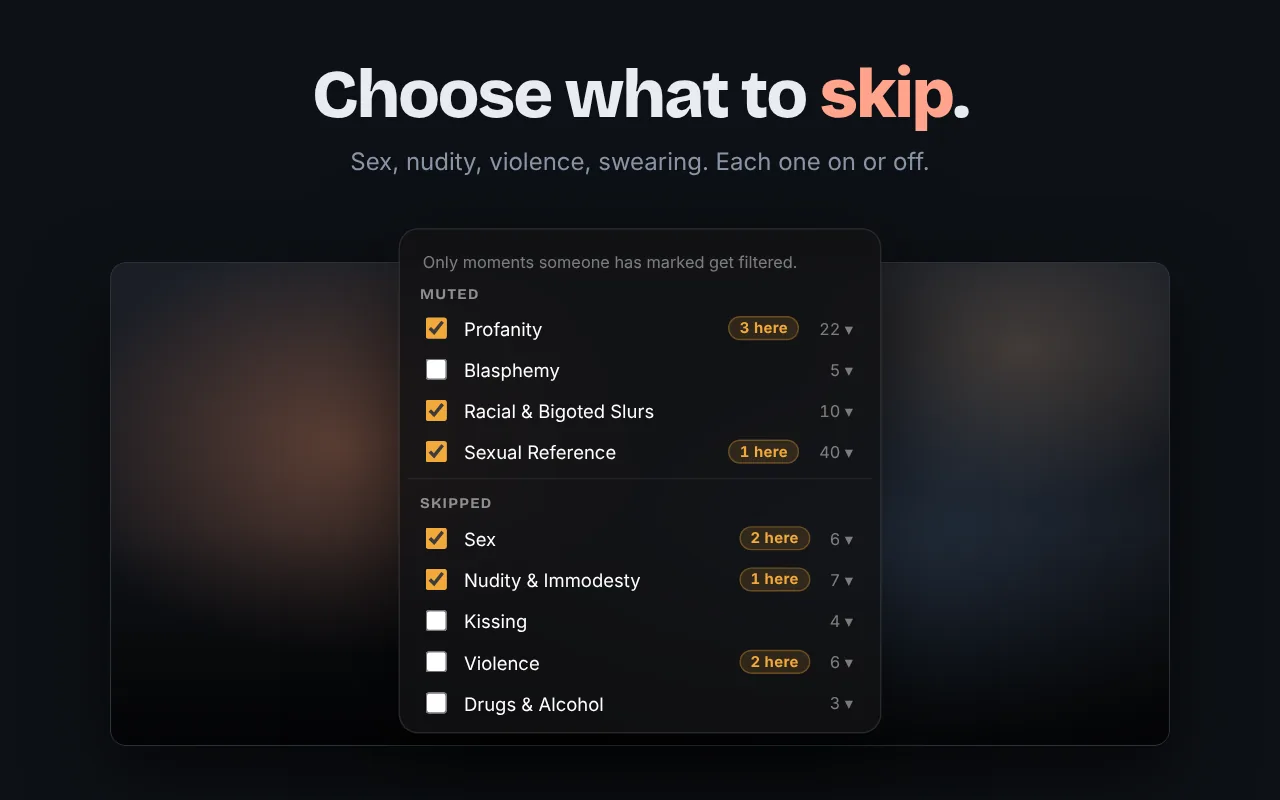
The two work well together. Use Netflix's controls to decide what each profile can open. Use CutCat for the shows you do allow, when you'd rather not sit through some of them.
The limits, plainly. CutCat only acts on scenes someone has marked, so a title nobody has marked plays as normal (see what is covered). It works on Netflix only. And it needs Chrome on a computer, so it does nothing on a TV or phone, where Netflix's own controls are all you have.
Set up the Netflix controls first. Then, for the shows you allow, add CutCat on the computer you watch on.